This article explains how employees can create and review leave requests in Easy Employer (EE), including submitting requests, adding comments, and checking approvals.
Contents
Related Articles
Overview
A leave request is required by most organisations for any form of planned leave or time away from work. It contains important information regarding the period of leave and is sent for approval within the organisation.
Depending on your organisation's policies, leave requests may require approval from a supervisor or manager. Refer to your organisation's policies or immediate leader for applicable rules and lead times.
NOTE: The Easy Employer Support Team cannot advise on whom your leave application was sent or provide comments on approvals or declines. You will need to speak to your immediate leader.
If the estimated hours show "0", your standard daily hours may not be set in Easy Employer. Please speak to your employer to set these.
If standard daily hours are set, a "0" balance may occur when a leave shift overlaps an actual shift. In this case, click Manage on the automatically generated shift and select Convert to leave, or delete the actual shift before creating the leave shift.
If the estimated hours show "0", your standard daily hours may not be set in Easy Employer. Please speak to your employer to set these.
If standard daily hours are set, a "0" balance may occur when a leave shift overlaps an actual shift. In this case, click Manage on the automatically generated shift and select Convert to leave, or delete the actual shift before creating the leave shift.
Create a leave request
- Under My Easy Employer, click Leave.
- Click Create leave request for me.
- Select the leave type.
- Select Paid or Unpaid.
- Click Next.
- Choose the date range and time for the request.
- Select Start date and End date.
- Click the calendar icon
 to select dates using the popup.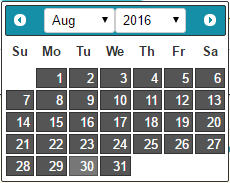
- For partial day requests, untick Auto calculate duration and select start and end times.
- Click the calendar icon
- Click Calculate to estimate entitlement balances for the request.
- Click Next.
- Enter a comment for your manager. It is recommended to provide detailed information.
- Click Next.
- Review all information to ensure correctness.
- Click Finish.
Your leave request has been submitted and will be reviewed by your organisation. You will receive a notification when it is approved or declined.
Review leave requests
- Under My Easy Employer, click Leave.
- The Leave page displays upcoming leave requests under My Leave.
- Click Actions (three dots icon) at the end of a leave request to Edit, Delete, or Edit End.
- Filter leave requests by date using the From/To fields.