This guide explains how employees can start and end shifts, take breaks, and use pin or fingerprint authentication with the Easy Employer time clock.
Contents
- Overview
- Shift start
- Shift end
- Start a break
- End a break
- How does fingerprint scanning with Easy Employer work
Related Articles
Overview
Your organisation/employer can use one of many installation types for the Easy Employer (EE) time clock software. For example, this could be a 'DIY' installation using a mouse (with or without a fingerprint reader) or an EE All In One Kiosk with a touch screen and integrated fingerprint reader.
The usage and permission for authentication methods is determined by your organisation/employer's policy.
Shift start
1. Click or tap on your name to start a shift.
Use Pin Authentication
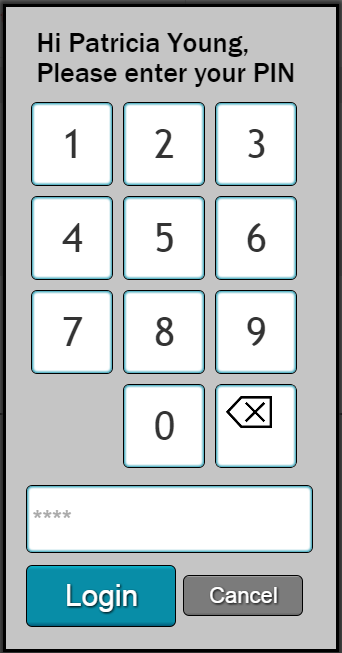
If you are using pin authentication, enter your previously set pin. If you need to set your pin, refer to the guide in the Related Articles section.
Use Fingerprint Authentication
- Ensure correct scanning technique.
- For fingerprint enrolment, follow this guide.
- For full fingerprint troubleshooting, follow this guide.
- Click or tap Start shift.
Shift end
- Click or tap on your name.
- Authenticate using your pin number or fingerprint.
- Click End shift.
Start a break
- Click or tap on your name.
- Authenticate using your pin number or fingerprint.
- Click or tap on Start break.
- Select the break type.
End a break
- Click or tap on your name.
- Authenticate using your pin number or fingerprint.
- Click or tap End break.
How does fingerprint scanning with Easy Employer work
Easy Employer uses the digitalPersona 4500 or 5000 series fingerprint module. When an employee scans their finger, the fingerprint scanner encrypts the image before sending it to the device’s Fingerjet biometric engine for verification.
The verification process creates a template with 25 to 40 unique fingerprint features, readable only by the biometric engine. The actual fingerprint is not stored and cannot be reconstructed from the template.
See the full document here.